views

Search This Blog

Wednesday, October 24, 2018

vRealize Automation Ports


In this post I’ll describe the required firewall ports for vRealize Automation Appliance Ports .

As a security best practice, configure incoming and outgoing ports for the vRealize Automation appliance according to VMware recommendations.


Incoming Ports

Port
Protocol
Comments
22
TCP
Optional. Access for SSH sessions.
80
TCP
Optional. Redirects to 443.
88
TCP (UDP optional)
Cloud KDC Kerberos authentication from external mobile devices.
443
TCP
Access to the vRealize Automation console and API calls.
Access for machines to download the guest agent and software bootstrap agent.
Access for load balancer, browser.
4369, 5671, 5672, 25672
TCP
RabbitMQ messaging.
5480
TCP
Access to the virtual appliance management interface.
Used by the Management Agent.
5488, 5489
TCP
Internally used by the vRealize Automation appliance for updates.
8230, 8280, 8281, 8283
TCP
Internal vRealize Orchestrator instance.
8443
TCP
Access for browser. Identity Manager administrator port over HTTPS.
8444
TCP
Console proxy communication for vSphere VMware Remote Console connections.
8494
TCP
Container service cluster sync
9300–9400
TCP
Access for Identity Manager audits.
54328
UDP
40002, 40003
TCP
vIDM cluster sync

 
Outgoing Ports

Port
Protocol
Comments
25, 587
TCP, UDP
SMTP for sending outbound notification email.
53
TCP, UDP
DNS server.
67, 68, 546, 547
TCP, UDP
DHCP.
80
TCP
Optional. For fetching software updates. Updates can be downloaded separately and applied.
88, 464, 135
TCP, UDP
Domain controller.
110, 995
TCP, UDP
POP for receiving inbound notification email.
143, 993
TCP, UDP
IMAP for receiving inbound notification email.
123
TCP, UDP
Optional. For connecting directly to NTP instead of using host time.
389
TCP
Access to View Connection Server.
389, 636, 3268, 3269
TCP
Active Directory. Default ports shown, but are configurable.
443
TCP
Communication with IaaS Manager Service and infrastructure endpoint hosts over HTTPS.
Communication with the vRealize Automation software service over HTTPS.
Access to the Identity Manager upgrade server.
Access to View Connection Server.
445
TCP
Access to ThinApp repository for Identity Manager.
902
TCP
ESXi network file copy operations and VMware Remote Console connections.
5050
TCP
Optional. For communicating with vRealize Business for Cloud.
5432
TCP, UDP
Optional. For communicating with another appliance PostgreSQL database.
5500
TCP
RSA SecurID system. Default port shown, but is configurable.
8281
TCP
Optional. For communicating with an external vRealize Orchestrator instance.
8494
TCP
Container service cluster sync
9300–9400
TCP
Access for Identity Manager audits.
54328
UDP
40002, 40003
TCP
vIDM cluster sync


Tuesday, October 23, 2018

Deploy Windows VMs for vRealize Automation Installation using vRealize Suite Lifecycle Manager 2.0

Deploy Windows VMs for vRealize Automation Installation using vRealize Suite Lifecycle Manager 2.0


In this post I am going to describe , how to deploy Windows VMs for vRealize Automation Installation using vRealize Suite Lifecycle Manager 2.0

vRealize Suite Lifecycle Manager 2.0, you can install or deploy IaaS windows of a vRealize Automation deployment without having to provision it before trying to create an environment with vRealize Automation in vRealize Suite Lifecycle Manager.

The pre-check run ensures the system requirements are met, while the Windows OS template (one or more for specific IaaS component) itself is provided by any user.

·        You can deploy IaaS components with a minimum number of steps.

·        IaaS component deployments are part of vRealize Automation deployment.

·        Pre-validations on the IaaS components should try to fix the issues wherever possible and when an issue is automatically handled you can fix from the UI.

Procedure-

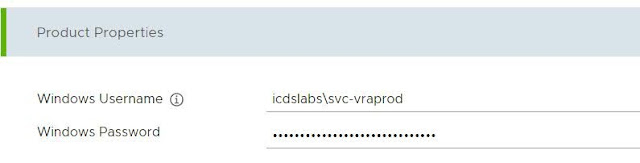
1-     Enter the Windows Username, and Password.
2- Select the Applicable Time Sync mode.


I do not have NTP server so I have selected use host time .

3-Select the Time Server (NTP). For more information, see Configure NTP Servers. 

 4- Configure Cluster Virtual IPs, select the Yes or No options.


If you select yes, then the load balancer is connected to the individual product and then configure the vRA Appliance, IaaS Web, and IaaS Manager manually.


5 -cloud admin you can deploy Windows VMs that are required for vRealize Automation installation, using vRSLCM installation wizard. Click Yes, and from the Configure Windows box under Product properties, select the required windows template and its associated spec.

When you select Yes, the Window box section appears. If you select no, then vRSLCM will not deploy new Windows VMs for IaaS components.

6 -deploying IaaS VMs, you can either select ISO or Template.
A-When you select ISO, map a valid windows ISO image along with a correct license key in vRSLCM. For more information on ISO mapping, see ISO Mapping in vRealize Suite Lifecycle Manager.
B-When you select Template as an option for IaaS, you are asked to select a template from a pre-populated list. The templates in the list are collected from the vCenter specified at the in Infrastructure Details section. For more details on usage of templates, see Templates and Custom Specification in vCenter Server


7 -For a customization specification, select Existing Spec or User Input. An existing spec provides an option to select a spec from the vCenter Server. For a user input, enter the fields manually. The entries for user input are not saved but will be applied for the current deployment of vRealize Automation.


8 -Enter the details required for each of the Components. For each components advanced property can be accessed to override details provided in the Windows Box section.

 
9- Click Next to continue to PreCheck Details section.


10 -Before proceeding with precheck and deploy Iaas windows VM we need to see Best Practices.

Windows Template

You can follow the listed practices when you are installing IaaS VMs using vRealize Suite Lifecycle Manager.

·        Windows update, if pre-configured in the templates used for a IaaS deployment, can lead to failure. Turn off the Windows update in the templates or create the template after performing recent most applicable update of the OS.

·        Have unique names for the templates in a vCenter inventory. If for a given vCenter, there are templates that do not have a unique name, then it is difficult to identify the correct one from LCM installation UI.


Windows ISO Image

 we can use the ISO-based deployments of IaaS for development and test environments.

 If an ISO-based IaaS deployment is used, then IaaS database VM should be pre-deployed. Deployment of database VM using ISO is not supported in vRealize Suite Lifecycle Manager 2.0.

 If an existing customization specification is being used for an IaaS deployment, then ensure that all the inputs for the custom spec are consistent and correct. Also, ensure that a valid NIC configuration with subnet details is present in the customization specification details.

 IaaS installation from LCM does not support use of Run Once Commands in a customization specification. Also, the process does not configure policies, firewall rules, Antivirus, or any other software pre-bundled in the VM template or ISO. As a work-around, configure the appropriate services in the template to have them functional after first start of the deployed VMs. After you validate and deploy reports successfully, you can access the console of the deployed VMs and configure the required policies in the respective VM as per requirement


11- click on validate and deploy in Precheck Details


12- Once precheck done , LCM will start deploying IAAS windows VM .  


13- we will see Successful message, Once Windows VM get deploy inside vCenter .


Deploy Windows VMs for vRealize Automation Installation using vRealize Suite Lifecycle Manager 2.0

Deploy Windows VMs for vRealize Automation Installation using vRealize Suite Lifecycle Manager 2.0 In this post I am going to describe ...